Docs
Browse Committed Files
The Repository Explorer shows your project configuration as Git holds it. It is read-only: nothing you do here changes a file, and nothing here is a pending edit. To review and commit your own changes, use Review and Commit Changes instead.
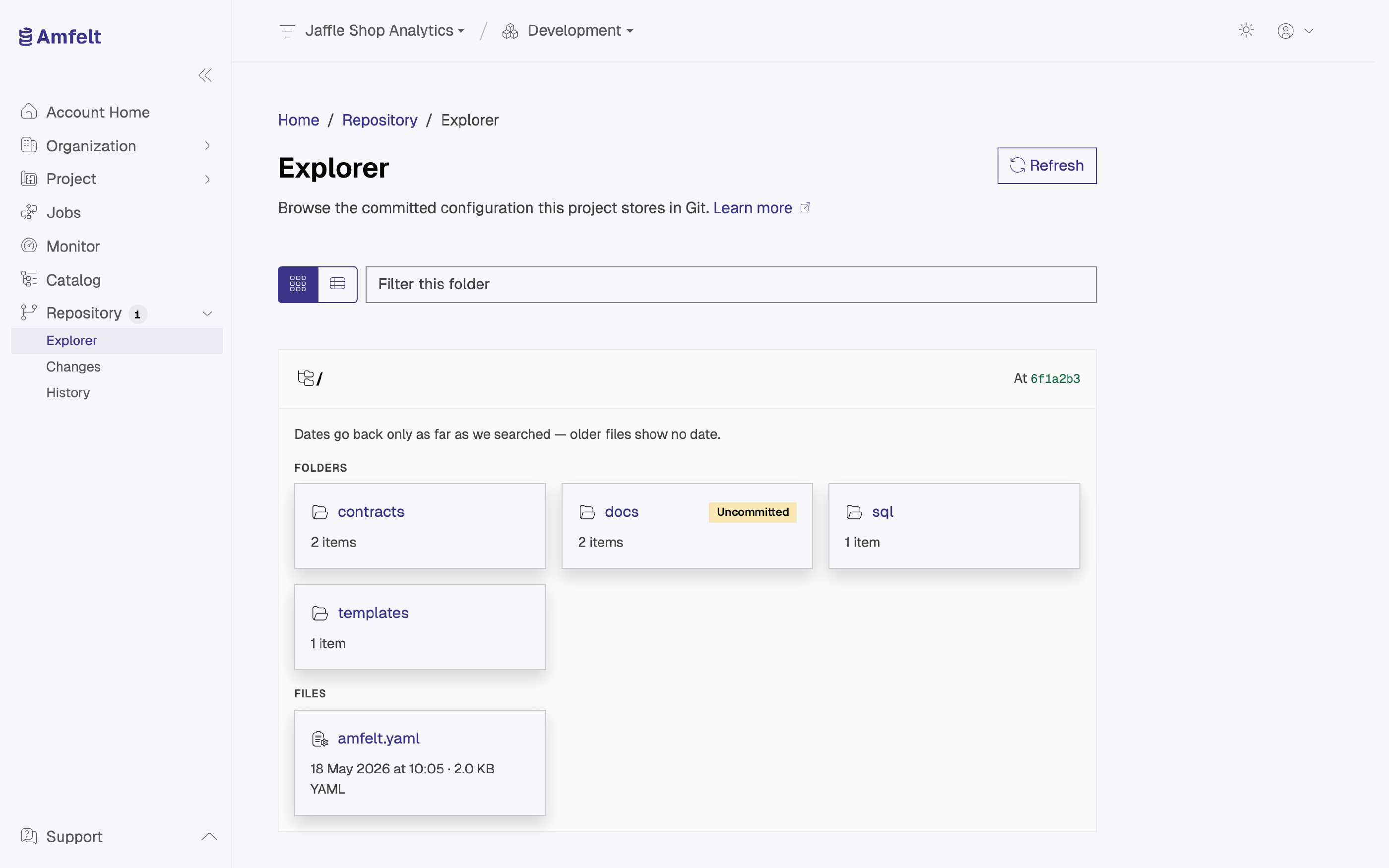
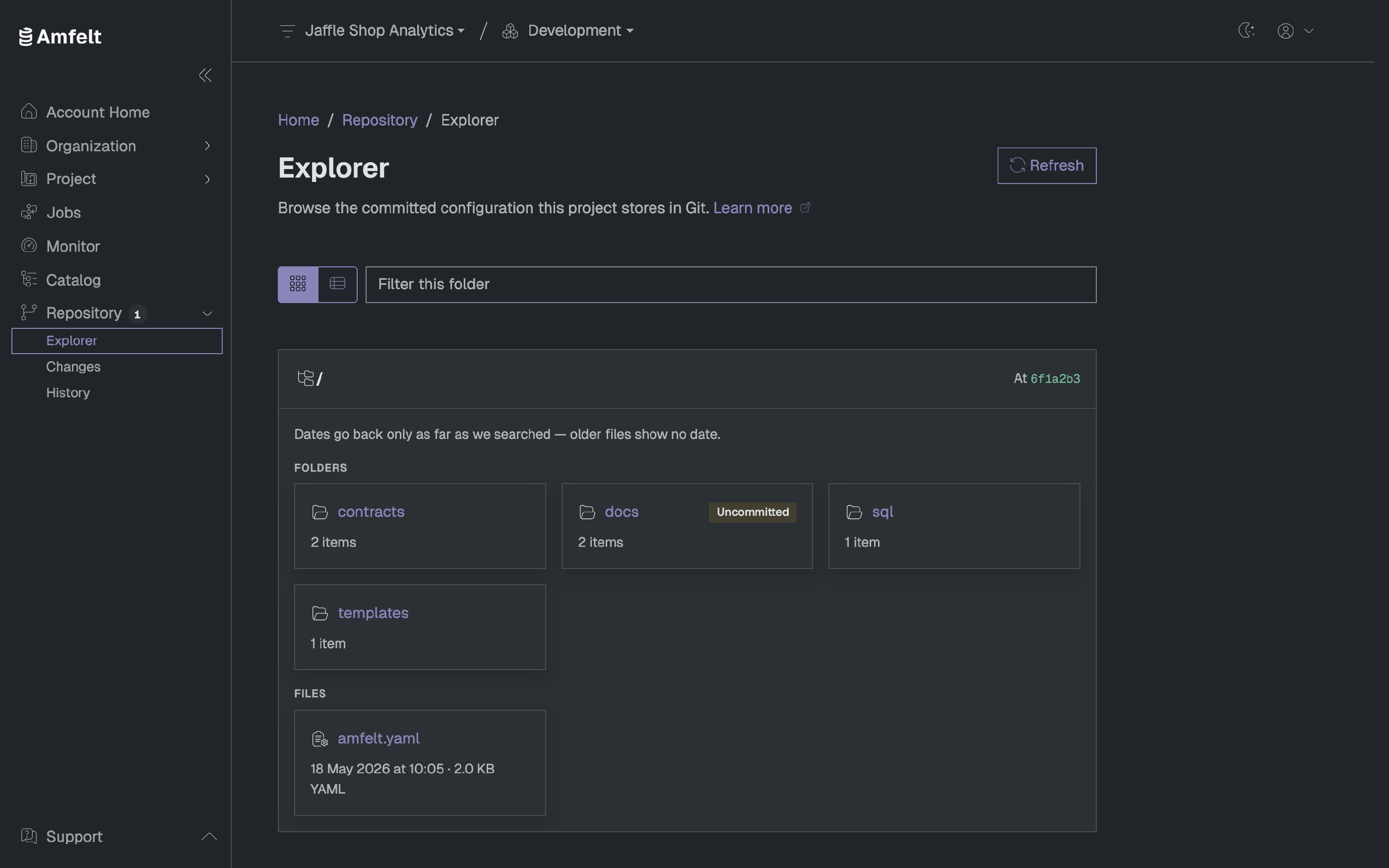
Browse the Tree
Open Repository → Explorer. You start at the repository root for the environment you are viewing, and the commit being shown is named at the top.
Folders and files are listed with their kind, size, and the date each was last modified. Open a folder to move into it, or use Up one folder to come back out. Selecting a file opens it in place of the listing, with syntax highlighting; the path bar takes you back to its folder.
Some listings show no dates. Modification dates are read by walking back through history, so a file whose last change is older than the search reaches simply shows no date rather than a wrong one.
The “Uncommitted” Marker
A file marked Uncommitted differs from your working copy: the version here is what is committed, and there is an edit that has not been committed yet. The marker links to the Changes page, where that difference is reviewed and committed. The Explorer itself never shows a diff; the two pages have separate jobs.
When a File Cannot Be Displayed
Four things can stop the viewer from showing a file. In every case the file itself is fine and nothing has been changed. Only the display refused.
The file is too large. Files above 512 KiB are not rendered in the browser. Download the file from your Git host to read it. Amfelt’s own generated configuration is far below this limit, so a file that trips it is almost always something else committed into the same repository.
The file is not text. Binary content, or text in an encoding the viewer cannot decode, cannot be displayed. Download it from your Git host instead.
The file is not in this commit. A link or bookmark made earlier can point at a path that has since been renamed or removed, or at a commit the repository no longer has. Go back to the repository root and browse to the file again from the current commit. The same applies to a folder that no longer exists.
The file could not be loaded. This is a transient read failure, not a statement about the file. Your configuration has not been touched. Use Retry. It re-reads the file rather than re-showing the failure.
Next
Last updated on October 30, 2026